


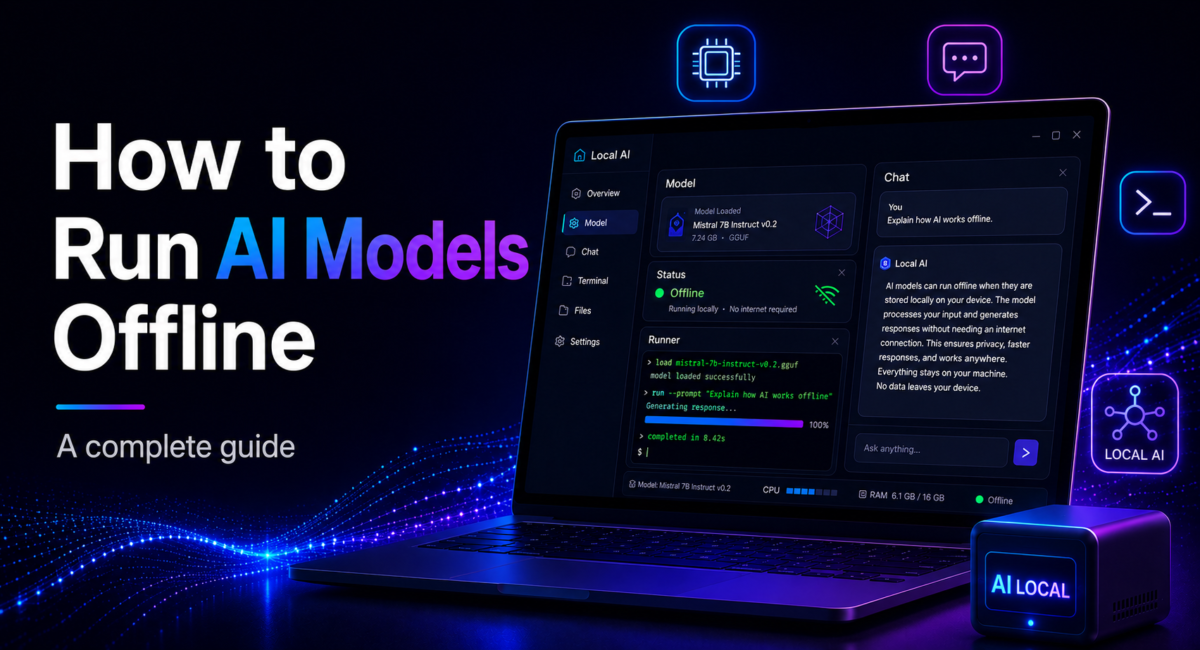
| Quick answer: To run AI models offline, install a runtime such as Ollama or LM Studio while you have internet, download the models you want, then disconnect. Models are just files, so once they are on your disk they compute entirely on your CPU or GPU with zero outbound traffic. You need internet exactly once. |
Running AI offline means the model executes fully on your own hardware, with no cloud API, no authentication, and no network connection after the initial download.
The idea trips people up because cloud AI has trained us to think of a model as a remote service you talk to over the internet. It is not. A model is a single set of weight files — anywhere from a couple of gigabytes to hundreds — and inference is just math running over those weights on your processor. Nothing about that math requires a network. The connection exists only to fetch the files in the first place; strip it away afterward and the model behaves identically. Understanding that one point makes every step below obvious rather than mysterious, and it is why offline AI has moved from a hobbyist curiosity in 2023 to a mainstream 2026 setup that ships polished installers, phone apps, and OpenAI-compatible servers.

How we compare: we install each runtime on the same 16 GB laptop, pull identical GGUF models, then physically disconnect the network to confirm what keeps working — rankings reflect that hands-on offline testing, not vendor claims. Disclosure: some outbound links may be affiliate links; the tools we recommend here are free and open, and our picks are unpaid.
Table of Contents
How to run AI models offline in five steps
The whole workflow is download, then disconnect. The only two steps that touch the internet happen up front, so plan them while you have a stable connection.
- Step 1 — Install the runtime (online). Install Ollama with a one-line command, or download the LM Studio desktop app. Ollama runs as a background service exposing an OpenAI-compatible REST API on
localhost:11434; LM Studio serves the same style of endpoint on port 1234. - Step 2 — Pull your models (online). Download the models you need from Hugging Face or your runtime’s registry — for example a general chat model, a coding model, plus a Stable Diffusion checkpoint and a Whisper model if you want images and transcription. Prefer quantized GGUF builds (Q4_K_M) to cut download size dramatically.
- Step 3 — Disconnect. Turn off Wi-Fi or unplug the cable. From here, chat, image generation, transcription, and document Q&A all run with no outbound traffic.
- Step 4 — For air-gapped machines, transfer the files. If the target device never touches the internet, download the runtime and models on a connected machine, copy them via USB or an external SSD, and install there.
- Step 5 — Verify and wire up your apps. Confirm the local endpoint responds, then point existing code at it — most OpenAI-SDK apps work by changing only the base URL.
The whole setup, as commands
With Ollama the online half of the job is three commands. Run these while connected, then pull the plug:
# 1. Install the runtime (macOS / Linux)
curl -fsSL https://ollama.com/install.sh | sh

# 2. Pull the models you want available offline
ollama pull llama3.2          # general chat
ollama pull qwen2.5-coder:7b  # coding

# 3. Confirm what is stored locally
ollama list

# --- disconnect from the internet here ---

# 4. Verify it still answers with no network
ollama run llama3.2 "Say hello without using the internet."

# 5. Point existing OpenAI-SDK code at the local endpoint
export OPENAI_BASE_URL=http://localhost:11434/v1
export OPENAI_API_KEY=ollama   # any non-empty string works
Step 5 is the one people miss. Because Ollama exposes an OpenAI-compatible API, most existing code keeps working after changing the base URL alone — no rewrite, no new SDK. That is what makes the offline switch cheap for a codebase that already calls a hosted model.

Why would you run AI without the internet?
The dominant reason is privacy. Every prompt sent to a cloud chatbot leaves your machine, and the risk is no longer theoretical: Cyberhaven’s 2026 analysis found that roughly 40% of AI interactions expose sensitive corporate data, and 72% of generative-AI users now rank privacy among their top three concerns. With offline AI, prompts, documents, and outputs never leave your device, which turns a compliance headache in healthcare, finance, and defense into a non-issue.
The second reason is availability. Offline models work on a plane, in a basement, in the field, or anywhere connectivity can’t be assumed — and in genuinely air-gapped facilities, cloud models are simply off the table. A third is cost: after the one-time hardware outlay there are no per-token fees. The trade-off is raw capability, since the largest frontier models still lead on the hardest reasoning — a balance we unpack in our guide to the best AI models overall.
What can you actually run offline?
Far more than chat. Offline AI in 2026 spans several modalities:
- Text LLMs for writing, reasoning, and coding — capable 8B-class models approach cloud-level quality on a 16 GB laptop.
- Image generation with Stable Diffusion (SD 1.5, SDXL, and newer community checkpoints), producing images in seconds on a decent GPU.
- Voice transcription with local Whisper, so no audio ever leaves the machine.
- Vision models that answer questions about images you attach or capture.
- Embeddings generated locally to power document search and retrieval-augmented generation.
Why compact models make it practical
Compact models make this practical. If you are new to the category, our explainer on what a small language model is covers why a 3B–8B model is often the right tool for offline work. Developers who mostly write code should also skim our roundup of the best AI model for coding, since offline coding assistants have closed much of the gap on HumanEval-style benchmarks — Qwen3 7B, for instance, now leads its size class on code generation.
You rarely need one giant model
The practical implication is that you rarely need one giant model. A smarter offline kit is a handful of specialists: a small, fast chat model for everyday questions, a coding model you load only when developing, a Stable Diffusion checkpoint for images, and a Whisper build for audio. Each is cheap to store, and swapping between them costs seconds. That modular approach also sidesteps the single biggest offline mistake — downloading only a general chat model, then discovering on a plane that you have no way to transcribe a recording or generate an image.
Which offline AI tools should you pick?
The mainstream runtimes all sit on the llama.cpp engine, so you choose for interface, not speed. Ollama is a command-line runtime that is telemetry-free and offline-safe; its May 2026 v0.24 release added full support for the latest Gemma family and holds thousands of models in its registry. LM Studio offers the most polished GUI, a visual model browser, MLX acceleration on Apple Silicon, and 2026 additions such as MCP tool-calling for agent workflows. GPT4All leans toward document work and Jan emphasizes airtight privacy.
| Tool | Interface | Best for | Notes |
|---|---|---|---|
| Ollama | Command line + REST API | Developers and scripting | OpenAI-compatible endpoint on port 11434 |
| LM Studio | Desktop GUI | Getting started without a terminal | Model browser built in; serves on port 1234 |
| llama.cpp | Library / CLI | Maximum control and embedding | The engine the others are built on |
| GPT4All | Desktop GUI | Simple local chat with documents | Beginner-friendly, lighter feature set |
| Jan | Desktop GUI | An open-source ChatGPT-style app | Fully offline by default |
For models, Qwen3 (Apache 2.0) is the strongest all-round local family across sizes; Google’s Gemma 3 adds vision and a long context window; Llama 3.3 8B is a reliable generalist; and Phi-4-mini (3.8B) is the best small reasoner for tight 8 GB setups, fitting in roughly 3 GB at Q4. All of them download from Hugging Face and keep working with no connection once in place.

Offline AI in practice
Consider Dr. Amara Okafor, a clinical researcher at a hospital whose network blocks external AI services outright for patient-privacy reasons. She needs to summarize de-identified interview transcripts and draft literature notes without any data crossing the firewall. Before leaving a connected workstation, she pulls a Qwen3 8B chat model and a Whisper model onto an encrypted external SSD, then installs both on an air-gapped machine inside the secure ward. Whisper transcribes her recorded interviews locally; the LLM summarizes and tags the transcripts; embeddings power a private search across her prior notes. Nothing ever leaves the room. Her honest takeaway: transcription and summarization are indistinguishable from the cloud tools she used to rely on, while the occasional complex statistical question is where she still wishes she had a frontier model — the exact trade-off you would expect. For that heavier analytical work she keeps a shortlist from our guide to the best LLM for data analysis for when she is back on a connected machine.
How much hardware do you really need?
For text, 8 GB of RAM is the practical floor and 16 GB is comfortable; a modern CPU works, and a GPU or Apple Silicon chip accelerates things substantially. The enabler is quantization: a Q4_K_M GGUF build cuts model size by about 75% with minimal quality loss, so a 7B model that needs ~14 GB at full precision drops to roughly 4.4 GB. That compression is exactly what makes an 8 GB laptop — or even a modern phone — viable.
It genuinely fits in a pocket
Offline AI genuinely fits in a pocket: recent iPhones with capable neural engines and 8 GB of RAM, and Snapdragon Android devices, run sub-billion to few-billion-parameter models, on-device image generation, and Whisper transcription. On phones and laptops alike, stick to smaller models for speed and battery life, and verify nothing phones home — monitor outbound connections during setup and pull any Docker images before you disconnect, since Docker cannot fetch them offline.
Habits that keep it trustworthy
A few habits keep an offline setup trustworthy. Build the kit while you still have good internet and test it disconnected at home before you rely on it in the field, because a missing model is far easier to fix on your couch than on a plane. Keep the whole thing on an encrypted external SSD so it travels between machines. And remember that the only things genuinely broken offline are web search, cloud API calls, and new downloads — everything that runs locally keeps working exactly as it did online. Local models can still hallucinate and lack some cloud-model safety tuning, so review important outputs rather than trusting them blindly.
Frequently Asked Questions
Can I run AI completely offline?
Yes. Install a runtime like Ollama or LM Studio while connected, download the models you need, then disconnect. Models are just files, so they compute entirely on your hardware with no API calls, authentication, or telemetry. You need internet only for the initial download of tools and models.
Does Ollama work offline?
Yes, Ollama runs fully offline once a model is downloaded. Pull models while connected, then disconnect and it keeps serving an OpenAI-compatible endpoint on localhost with no outbound traffic. This makes it a popular choice for air-gapped and privacy-sensitive deployments where nothing can leave the machine.
What hardware do I need to run AI offline?
For text models, 8 GB of RAM is the practical minimum and 16 GB is recommended; a GPU or Apple Silicon chip helps a lot. Quantized Q4_K_M GGUF models shrink files by about 75%, so a 7B model that needs ~14 GB at full precision fits in roughly 4.4 GB.
What can I run offline besides chatbots?
Plenty. Beyond text LLMs you can run local image generation with Stable Diffusion, speech-to-text with Whisper, vision models that answer questions about images, and embedding models for document search and RAG. Most everyday AI tasks — writing, images, transcription, document Q&A — have capable offline options.
Can I run AI offline on my phone?
Yes. Recent iPhones with capable neural engines and 8 GB of RAM, or Snapdragon Android devices, run small language models, on-device image generation, and Whisper transcription entirely offline. Dedicated apps filter their model browsers by your phone’s RAM so you only download models your device can actually run.
How do I deploy AI in an air-gapped environment?
Download the runtime installer and every model you need on a connected machine, transfer them via USB or external SSD, then install on the air-gapped device. Verify nothing phones home by monitoring outbound connections during setup, and pull any Docker images before disconnecting, since Docker cannot fetch them offline.
Conclusion
Running AI offline is no longer an exotic setup — it is a download and a disconnect. The two steps that need the internet both happen up front, and once the weights are on disk, the model does not care whether you have a connection. That is the whole trick, and it is why air-gapped deployment works the same way as a laptop on a plane.
Decide in this order. Start with your RAM, because it sets the ceiling on what you can run before anything else matters — a 7B model quantized to Q4 is comfortable on 16GB, and 32GB opens up the mid-sized models. Then pick the interface, not the engine: Ollama, LM Studio and the rest mostly sit on llama.cpp, so you are choosing how you want to work, not how fast it runs. Then pull one model and actually disconnect — verifying offline behaviour before you rely on it takes two minutes and is the step people skip.
Expect a real quality gap against frontier hosted models, and treat that as the price of privacy rather than a disappointment. For picking the weights themselves see best local LLM, or what a small language model is if your hardware is tight.
