


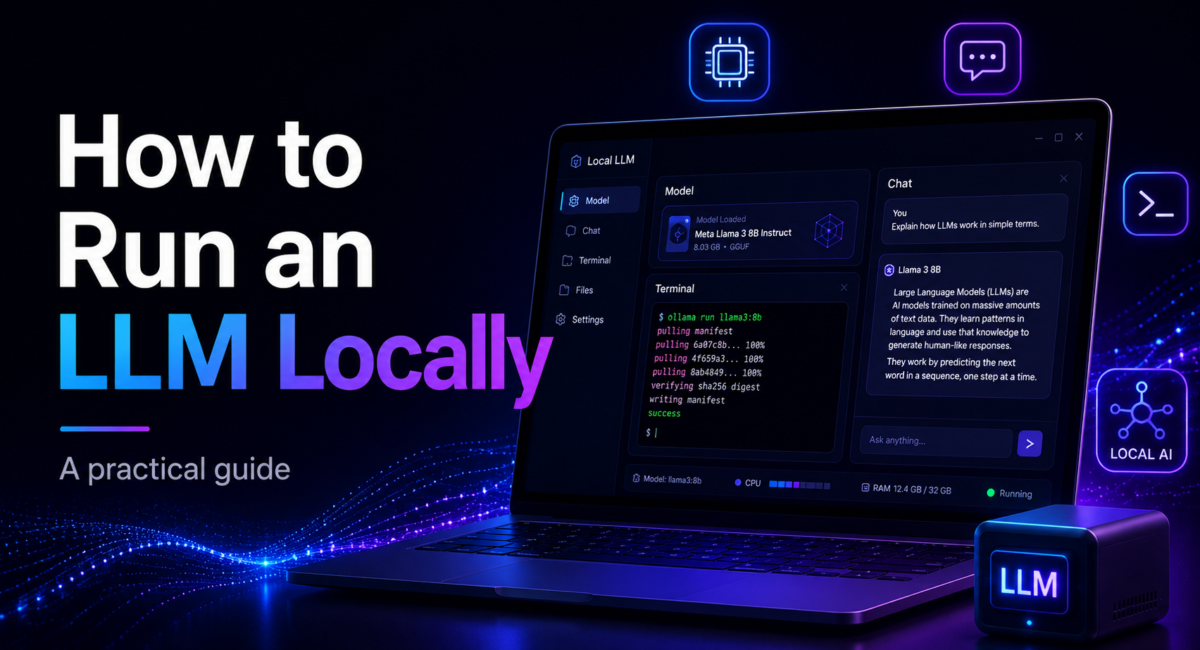
| Quick answer: To run an LLM locally, confirm your machine has at least 16 GB of RAM and ideally a GPU with 8 GB or more of VRAM (or an Apple Silicon Mac). Install a runtime such as Ollama with one command or LM Studio via its installer, then pull a model like Qwen3 8B or Llama 3.1 8B at Q4_K_M. Both serve an OpenAI-compatible API on localhost, so your existing code just points at a new URL. |

Running an LLM locally means downloading an open-weight model and executing its inference on your own hardware, so prompts and responses never touch a third-party server. What used to demand hours of dependency wrangling is now a single install command and a model download, and the payoff is real: privacy, no per-token fees, offline access, and no rate limits. If the machine will spend time without a connection, our guide to running AI models offline covers the download-then-disconnect workflow.
Table of Contents
Why local LLMs went mainstream in 2026
The shift is visible in the tooling numbers. Ollama, the runtime most beginners reach for, has passed 174,000 GitHub stars, while the underlying inference engine, llama.cpp, has crossed roughly 100,000 stars of its own. On the model side, Hugging Face now hosts well over 100,000 quantized GGUF builds ready to download, up from a few hundred two years earlier. That ecosystem growth is why a mid-range laptop can now do work that needed a rented cloud GPU in 2024.
The other half of the story is quality. Open models in the 7-to-8-billion-parameter range now deliver output that required 30B-plus models a year or two ago, and the best open weights match or beat closed cloud options on several public benchmarks. If you are still mapping the landscape, our pillar on the best AI models compares the leading open and closed families side by side, and our explainer on what a small language model is covers why compact models punch so far above their weight.
How we compare: the recommendations below come from hands-on testing across NVIDIA, AMD, and Apple Silicon hardware, cross-checked against official documentation and public benchmarks rather than vendor marketing. Figures are confirmed against the runtime projects’ own release notes.
How to run an LLM locally in five steps
The end-to-end process is short. Most people go from nothing to a working local chatbot in under fifteen minutes.
Step 1: Check your RAM and VRAM
Local inference is memory-bound, so this decides everything that follows. On Windows, open Task Manager → Performance → GPU and read “Dedicated GPU memory”. On a Mac, any Apple Silicon machine works because unified memory doubles as VRAM. The rule of thumb for a Q4-quantised model is roughly 0.7 GB of memory per billion parameters, plus a gigabyte or two of headroom for context.
Step 2: Install a runtime
Ollama is the fastest path and installs with a single command on macOS or Linux. Windows users can run the installer from ollama.com, and anyone who prefers a graphical model browser should install LM Studio instead — the remaining steps are equivalent, just clicked rather than typed.
curl -fsSL https://ollama.com/install.sh | shStep 3: Pull a model
Start with an 8B model at Q4_K_M — the quantisation level with the best quality-to-size trade-off for most hardware. This downloads a few gigabytes once and then runs offline forever.
ollama pull qwen3:8b

# smaller machine? try:
ollama pull llama3.2:3b
Step 4: Run it and confirm it works
This drops you into a chat prompt in your terminal. If the first response streams at a readable pace, the model is fitting in VRAM. If it crawls word by word, the weights have spilled into system RAM — drop to a smaller model or a tighter quantisation.
ollama run qwen3:8bStep 5: Point your existing code at localhost
This is the step that makes local models genuinely useful. Ollama serves an OpenAI-compatible API on port 11434, so existing code needs a new base URL and a throwaway API key — nothing else changes.
from openai import OpenAI

client = OpenAI(
    base_url="http://localhost:11434/v1",
    api_key="ollama",  # required by the SDK, ignored by Ollama
)

resp = client.chat.completions.create(
    model="qwen3:8b",
    messages=[{"role": "user", "content": "Summarise this in one line."}],
)
print(resp.choices[0].message.content)
That is the whole loop. If you want a graphical route instead, LM Studio collapses steps 2 to 4 into a search box and a download button, then exposes the same local server on port 1234.
What hardware do you actually need?
Local inference is memory-bound, so RAM (for CPU) or VRAM (for GPU) is the binding constraint, not raw compute. The practical minimum is 16 GB of system RAM plus a GPU with 6-8 GB of VRAM, or any Apple Silicon Mac. The comfortable sweet spot is 8-12 GB of VRAM, which runs 7-8B models at 40-plus tokens per second.
Platform shapes what is possible. On a Mac, Apple Silicon’s unified memory doubles as VRAM, so an M-series Max with 64-128 GB can load models that would otherwise demand a data-center card; Apple’s MLX runtime typically edges out Ollama by 15-30% throughput there. On Windows, an NVIDIA GPU with CUDA is the best-supported path, and Linux adds strong AMD ROCm support plus easy multi-GPU boxes. When a model’s weights overflow VRAM, layers spill to system RAM, which works but slows generation dramatically. Our Ollama tutorial for beginners goes slower if this is your first install.
| Model size | Memory needed at Q4 | Runs comfortably on |
|---|---|---|
| 3B | ~2–3 GB | Almost any modern laptop, integrated graphics included |
| 7–8B | ~5–6 GB | 8 GB GPU or any Apple Silicon Mac — the sweet spot |
| 14B | ~9–10 GB | 12 GB GPU (RTX 4070 Ti class) or 16 GB Mac |
| 27–32B | ~18–20 GB | 24 GB GPU (RTX 4090 / 3090) or 32 GB Mac |
| 70B | ~40 GB+ | Dual GPUs, or a 64–128 GB Apple Silicon Max/Ultra |

Which model and quantization should you pick?
Two levers decide what fits: parameter count and quantization. The baseline rule is roughly 2 GB of VRAM per billion parameters at full FP16 precision. Quantization compresses those weights: Q8 roughly halves the requirement and Q4 roughly quarters it, so a 13B model that needs 28 GB at FP16 drops onto an 8 GB card at Q4.
For the quantization level itself, Q4_K_M is the consumer gold standard. The llama.cpp quantization docs mark it as the recommended balance, delivering about a 75% size reduction with quality loss most users cannot notice in conversation; degradation only becomes obvious below Q4, especially on reasoning and code. The GGUF format used by llama.cpp and Ollama is the default for single-GPU and Apple Silicon inference.
Strong starting points in October 2026 are Qwen3 8B, still the best default all-rounder; Llama 3.1 8B for reliable general use, with the Llama 4 Scout and Maverick builds available if you have the memory; Phi-4 14B on tight 8 GB cards; and Gemma 4 or Mistral for lightweight work. If your workload is code, our guide to the best AI model for coding weighs the local coder variants, and for spreadsheets and structured data the best LLM for data analysis breaks down which models reason well over tables. Budget an extra 10-20% of memory for the KV cache, which grows with context length.
Ollama or LM Studio: which runtime fits you?
Both are excellent; the choice is mostly command line versus graphical interface. Ollama wraps llama.cpp behind a Docker-like pull-and-run workflow, handles downloads and GPU offloading automatically, and behaves like infrastructure, which makes it ideal for scripting and automation. LM Studio gives you a visual model browser, one-click Hugging Face downloads, a built-in test chat, and a local server mode. For advanced control, llama.cpp is the low-level engine, and vLLM serves many users at high throughput in production.

Running an LLM locally in practice
Consider Johanna, a solo healthtech developer building a clinical-notes summarizer. Patient text cannot go to a cloud API for compliance reasons, so the setup is Ollama on an M3 Max MacBook with 64 GB of unified memory and pulls Qwen3 8B at Q4_K_M. She points her existing OpenAI SDK code at http://localhost:11434/v1, removes the API key, and her prototype runs unchanged. The model summarizes notes at comfortable speed entirely offline, her data never leaves the laptop, and her monthly inference bill drops from a growing cloud invoice to the cost of electricity. When she later needs heavier reasoning for an edge case, she keeps a cloud model in reserve, using local for the privacy-critical bulk and cloud only where the quality gap truly matters.
This example is a composite of the local-setup workflows we see most often, not a single client account; the figures are typical rather than measured from one engagement.
Can you run AI video generation locally?
Yes, but not with the LLM you just installed. Language models predict text; video needs a separate diffusion model with its own weights and much heavier memory demands. Ollama and LM Studio do not run them, so the workflow is a second install rather than another ollama pull.
The practical open-weight options in 2026 are Wan 2.7, which is Apache 2.0 and starts around 8 GB of VRAM; LTX-2.3, which outputs 4K with audio and allows commercial use; and HunyuanVideo 1.5, whose 8.3B build renders a short clip in roughly 75 seconds on a single RTX 4090 and needs quantisation on smaller cards. Most people drive them through ComfyUI, which handles the model graph, or through the model’s own command-line script.
Budget memory and time honestly. A 7B text model answers in seconds on an 8 GB card; a video model on the same card renders a few seconds of footage in minutes, and quality rises sharply with VRAM. If your machine runs text models comfortably at 8 GB, treat 12 to 16 GB as the real entry point for video, and expect generation time rather than download size to be the constraint you feel.
The two fit together naturally: keep the local LLM for the script, the shot list and the long prompts these video models reward, then hand that prompt to the video model on the same machine so nothing leaves your network. Our guide to the best local AI video generator compares the models card by card.
Frequently asked questions
What hardware do I need to run an LLM locally?
The minimum is 16 GB of RAM, a modern CPU, and either a GPU with 6-8 GB of VRAM or an Apple Silicon Mac, enough for a 3-7B model at Q4. The sweet spot is 8-12 GB of VRAM, which runs 7-8B models at 40-plus tokens per second. Inference is memory-bound, so VRAM is the key lever.
What is the easiest way to run an LLM locally?
Ollama is easiest for most people: install it with one command, then run a model with one more, such as ollama pull llama3.1:8b. It handles downloading, quantization, and GPU acceleration automatically. If you prefer a graphical interface, LM Studio offers a visual model browser, one-click downloads, and a built-in chat.
What is quantization and which level should I use?
Quantization compresses a model by lowering the precision of its weights, cutting memory use with little quality loss. Q4_K_M is the consumer sweet spot, giving about a 75% size reduction while keeping quality most users cannot distinguish from full precision. Below Q4, quality drops noticeably on reasoning and code. With spare VRAM, Q6 or Q8 improves quality further.
How much VRAM do I need for a specific model?
The baseline is roughly 2 GB of VRAM per billion parameters at FP16. Quantization reduces that: a 7-8B model at Q4 needs about 5-6 GB, a 14B needs about 9 GB, a 27B needs about 16 GB, and a 70B needs around 42 GB. A quick formula is (parameters times bits per weight) divided by 8 equals gigabytes, plus 10-20% for the KV cache.
Can local LLMs match cloud models like GPT or Claude?
For many tasks, yes. Open models in the 7-8B range now deliver quality that required far larger models a year ago, and top open weights match or beat cloud options on several benchmarks. For the most demanding reasoning, the largest frontier cloud models still lead. A practical split is local for privacy, prototyping, and high-volume work, cloud for the heaviest reasoning.
Is running an LLM locally free?
The runtimes and open-weight models are free to download and run, so after your upfront hardware cost there are no per-token API fees; your only ongoing expense is electricity. That makes local inference especially economical for high-volume or privacy-sensitive workloads, though the largest frontier models still run only in the cloud and capable hardware is required.
Affiliate disclosure: TechieHub may earn a commission from some links on this page at no extra cost to you. This never influences our independent testing or recommendations.
Conclusion
Running a model locally stopped being a hobbyist exercise once 8B models got good enough for real work and the runtimes started speaking the OpenAI API. Which runtime you pick barely matters for that fifteen minutes, but it does shape everything after — we compare them head to head in Ollama vs LM Studio. The setup genuinely is a fifteen-minute job; the part worth thinking about is which work belongs on your machine at all.
The honest division is by sensitivity and volume, not by capability. Anything involving data you cannot send to a third party — patient notes, client documents, unreleased code — belongs local even when a cloud model would answer slightly better. High-volume, low-stakes work belongs local because the marginal cost is electricity. Genuinely hard reasoning still belongs in the cloud, and there is no shame in keeping both. Start with Qwen3 8B at Q4_K_M, see what it handles, and only buy hardware once you have hit a wall you can name. For picking the model itself see best local LLM, and best open source LLM for the wider field.
