


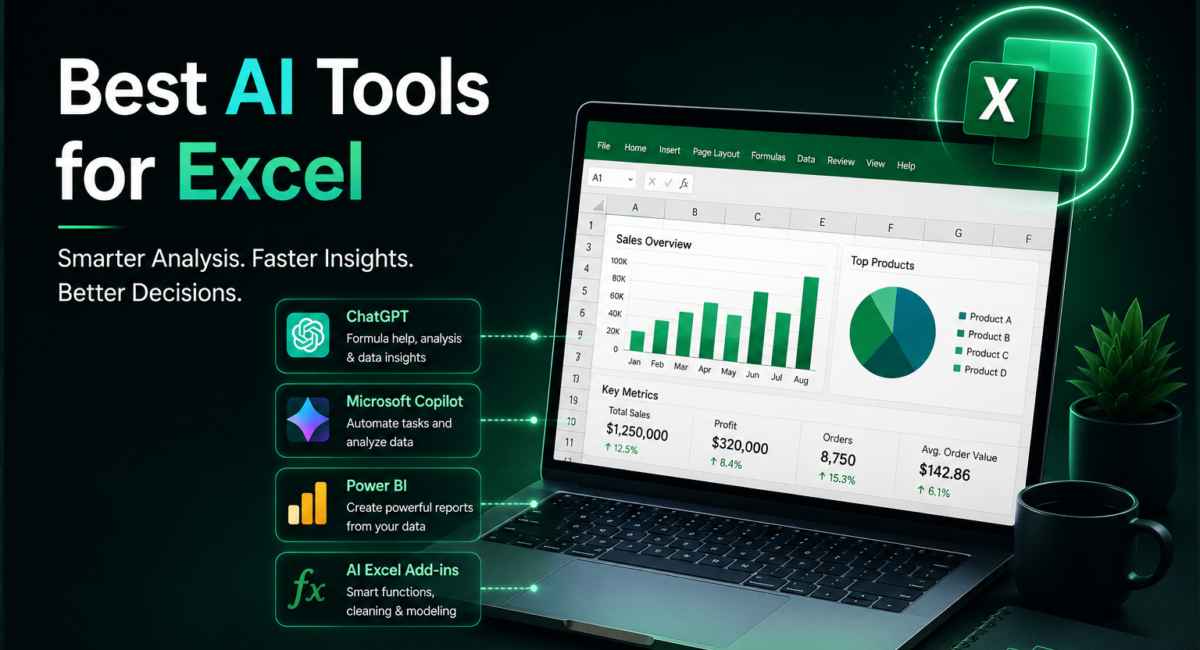
Disclosure: some links on TechieHub are affiliate links. If you buy through one we may earn a small commission at no extra cost to you. It never changes what we recommend.
Spreadsheets are still where budgets get set, commissions get calculated and forecasts get argued about — and still where the most expensive mistakes quietly live. What changed over the past eighteen months is the shape of the help. AI in Excel is no longer a suggestion box handing you a formula to paste; the leading tools open the workbook, plan the steps, test their own formulas and report what they changed. Microsoft, Google and Anthropic now publish benchmark numbers for that exact job, so you can compare claims instead of vibes.
| Quick answer: Copilot Agent Mode is the strongest native choice for Microsoft 365 teams. Claude for Excel, now running Opus 5, leads on financial models and formula auditing. ChatGPT suits exploratory analysis on uploaded files, and Formula Bot or Ajelix fix one-off formula problems cheaply. Whatever you pick, verify the output. |

Table of Contents
What can AI actually do inside an Excel workbook now?
Four capabilities matter in practice. The first is authoring: describing a calculation in plain English and getting a working formula, pivot table or chart placed in the right cells rather than dropped into a chat window. The second is comprehension — pointing at an inherited cell and asking what it does and where its logic breaks.
The third is repair and cleanup: de-duplicating records, normalising date and currency formats, unmerging headers and reshaping a flat export into something a pivot table can read. The fourth, and the genuinely new one, is agentic execution. Microsoft’s Agent Mode does not just produce output; it evaluates the result, fixes what failed and repeats until the task validates, which is why it can build a full loan amortisation schedule from a single prompt instead of one formula at a time.
Those four jobs recur across the wider field of AI tools for data analysis, but a spreadsheet adds one constraint: the answer has to survive being audited cell by cell.
Which are the best AI tools for Excel in 2026?
The options split by where the AI sits: inside your live workbook, in a side panel beside it, or in a separate window you upload files to. That placement decides more about fit than raw capability does.
Copilot Agent Mode in Excel — most integrated with your live workbook
Copilot Agent Mode reached general availability on Excel for desktop in January 2026 and rolled out across Word, Excel and PowerPoint that April. It works on your live workbook inside your tenant, which matters for governance as much as convenience — nothing leaves the environment your IT team already approved. It reaches both Microsoft 365 Copilot licence holders and consumer Personal, Family and Premium subscribers. If your organisation is on Microsoft 365, start here before evaluating anything else.
Claude for Excel — best for finance and modelling work
Claude for Excel runs as a side panel that reads, edits and builds workbooks while showing its reasoning, which makes its steps auditable in a way agent output usually is not. It left research preview for general availability on paid Claude plans during 2026 and now runs on Claude Opus 5, released 24 July 2026. Anthropic has pushed hardest on finance, adding market-data connectors and prebuilt skills for jobs like discounted cash flow models — so it is the strongest pick when the workbook is a financial model rather than a data table.
ChatGPT — most flexible for messy data
ChatGPT remains the most flexible analyst. Advanced Data Analysis runs Python against your uploaded file, so it can clean, join and chart datasets that would be painful natively, and OpenAI has since shipped an Excel add-in of its own. The trade-off is that upload-based work is a copy of your data rather than the live workbook, so it suits exploration and one-off analysis more than maintaining a model others rely on.
Gemini in Google Sheets — the Workspace-native option
If your spreadsheets live in Google Sheets rather than Excel, Gemini is the equivalent in-place option, working directly on the sheet inside Workspace. The same logic as Copilot applies: being native to the suite you already run usually beats a marginally more capable outsider, because permissions, data residency and rollout are already solved.
Formula Bot and Ajelix — cheap fixes for formula and VBA pain
Formula Bot and Ajelix are the focused options when your only pain is formula syntax, VBA or small automations. Both offer free tiers and add-ins for Excel and Sheets, which makes them the cheapest way to remove a specific recurring frustration. They are not analysts — asking them to reason about your data rather than write a formula is the wrong job.
Numerous.ai and Julius AI — bulk cell work and upload-and-ask analysis
Numerous.ai puts prompts directly into cells, which is the right shape for bulk classification, tagging or rewriting across thousands of rows — work that is tedious rather than difficult. Julius AI is the upload-and-ask analyst for charts and statistics without writing code, suited to answering a question about a dataset rather than maintaining a workbook. For broader analysis work beyond spreadsheets, see our guide to AI tools for data analysis.
How do the main options compare on price and fit?
How we compare: we prioritise where a tool runs (your workbook versus an upload), what it is measurably good at, and total cost including any base subscription you must already hold. Prices are published entry points as of July 2026 and move often, so check the vendor before buying.
| Tool | Where it works | Best for | Entry cost, July 2026 |
| Copilot Agent Mode | Excel web and desktop | End-to-end builds in a governed tenant | Microsoft 365 Premium, or a business Copilot add-on |
| Claude for Excel | Excel side panel | Financial models, formula audits | Paid Claude plans, from around $20/month |
| ChatGPT | Upload, plus Excel add-in | Exploratory analysis and cleaning | Free tier; Plus around $20/month |
| Gemini in Google Sheets | Google Sheets only | Teams who left Excel for Sheets | Included with paid Workspace tiers |
| Formula Bot | Excel and Sheets add-in | Plain-English formulas, PDF to sheet | Free tier; paid from roughly $18/month |
| Julius AI | Upload and chat | Charts and statistics without code | Limited free tier; paid from roughly $20/month |
| Ajelix | Excel and Sheets add-in | Formulas, VBA and light automation | Free daily allowance; paid from roughly $15/month |

How accurate are AI spreadsheet agents?
Good enough to save real hours, not good enough to sign off unread. The industry now benchmarks this on SpreadsheetBench, a set of real-world workbook editing tasks. Microsoft reports that Copilot’s Agent Mode in Excel is 57.2% accurate on it. In March 2026 Google reported that Gemini in Sheets reached 70.48% on the full dataset, calling it state-of-the-art and close to human expert performance.
Read that honestly: the best publicly benchmarked spreadsheet agent still misses roughly three tasks in ten. That is a useful assistant and a terrible unsupervised employee.
The comforting counterpoint is that the human baseline is not clean either. Research led by Professor Pak-Lok Poon found that 94% of spreadsheets used in business decision-making contain errors. AI is not introducing error into a clean process; it changes where mistakes come from and how fast they arrive. The response is the discipline good analysts already use — reconcile totals, test edge cases, never accept a number you cannot explain.
Is it safe to put company data into these tools?
It depends which door your data walks through. Enterprise assistants that run inside your existing subscription are the conservative choice: Microsoft states that Copilot does not use your prompts, responses or Microsoft Graph data to train its foundation models, and that tenant isolation and existing permissions still apply. One caveat for European teams: some third-party models used inside Office apps process outside the EU Data Boundary, and that setting can be on by default for newer tenants.
Consumer chat tools carry a different risk profile. Uploading a payroll extract to a personal account is a disclosure decision, not a productivity one. The safe pattern is to anonymise first — strip names, account numbers and identifiers, keep the structure, and let the tool reason about shape rather than people. Anyone handling client ledgers should read our guide to AI tools for accountants before connecting anything to live books.
In-place agent or upload-and-chat analyst?
Start from the shape of the problem, not the brand. If the workbook is the deliverable — a model colleagues will open, edit and rely on — you want a tool that edits it in place, preserves formatting and leaves auditable formulas behind. If the file is only raw material for a question you need answered once, an upload-and-chat analyst is faster: it can run Python, chart forty variations and discard the copy.

A third case deserves naming: the single stubborn formula. Paying for a platform to solve a nested INDEX and MATCH twice a month is poor value when a focused generator does it free. That sits inside the broader question of how to use AI for data analysis well — match the tool to the frequency and stakes of the task, not to the size of the vendor.
Use case: rebuilding a broken commission model
Karolina Nowak is a revenue operations analyst at a 120-person software company. She inherited a 34-sheet commission workbook from someone who left in 2024, and a sales rep had just disputed a payout by about $2,400. Her task: find the discrepancy before payroll closed on Friday.
She opened the workbook with an in-panel assistant and asked it to trace the dependency chain behind the disputed cell rather than fix anything. Two problems surfaced: a lookup pointed at a tier table superseded when the plan changed in January, and a SUM range stopped three rows short of a region block that grew in Q2. She then had the assistant draft replacements using structured references, and validated them by recomputing three quarters by hand against the payroll export.
The outcome was a two-day forensic job compressed into an afternoon, plus a reconciliation row on each sheet that flags mismatches automatically. The example is a composite of workflows we see, but the moral is exact: AI found the problem fast, and the analyst still confirmed the fix.
Frequently Asked Questions
Can AI write Excel formulas reliably?
For common patterns like lookups, conditional sums and date maths, yes, and usually in seconds. Reliability drops on ambiguous requests, unusual data shapes and edge cases such as blanks or mixed types. Test any generated formula against a row where you already know the correct answer before you trust it.
What is the best free AI tool for Excel?
ChatGPT’s free tier handles a surprising amount of analysis on uploaded files, and Formula Bot and Ajelix both offer free allowances for formula generation. Native Copilot Agent Mode is the notable exception, since it requires a qualifying Microsoft 365 subscription rather than a free account.
Does an AI agent replace a spreadsheet analyst?
No. Current agents score in the 57% to 70% range on real-world spreadsheet benchmarks, which makes them fast drafters and poor final approvers. The role shifts rather than disappears: less time typing syntax, more time defining the question, checking assumptions and explaining what the numbers mean.
Can AI read my existing workbook or only files I upload?
Both models exist. Copilot Agent Mode and the Claude and ChatGPT Excel add-ins work on the open workbook, keeping formatting and formulas intact. Chat-based analysts require an upload and hand back a new file, which is fine for exploration but awkward when the original workbook is the deliverable.
Which AI is best for financial modelling?
Claude, running Opus 5, has the strongest positioning here: Anthropic built the Excel add-in around finance workflows and added connectors for market data plus prebuilt skills for tasks like discounted cash flow models. Copilot is competitive when your data must stay inside a governed Microsoft tenant.
How do I check an AI-generated formula quickly?
Three quick checks catch most failures. Recompute one row manually and compare. Test a deliberate edge case — a blank, a zero, a text value in a number column. Then use Excel’s trace precedents to confirm the formula actually references the ranges you assumed it did.
Conclusion
The choice is less about which vendor wins than about where your data lives and what the output must survive. If your work happens inside Microsoft 365 and has to stay governed, Copilot Agent Mode is the default. If you build and audit financial models, Claude on Opus 5 has the deepest support for that job. If you mostly interrogate datasets, an upload-and-chat analyst like ChatGPT or Julius is faster and cheaper. And if formulas are the only friction, a focused generator solves it for nearly nothing.
What has not changed is accountability. Benchmarks put the best agents near seven tasks in ten, so the winning habit in 2026 is delegation with verification. For the wider stack around this one, see our guide to the best AI tools for business.
